Studio
Finish the post right here.
No app switching.
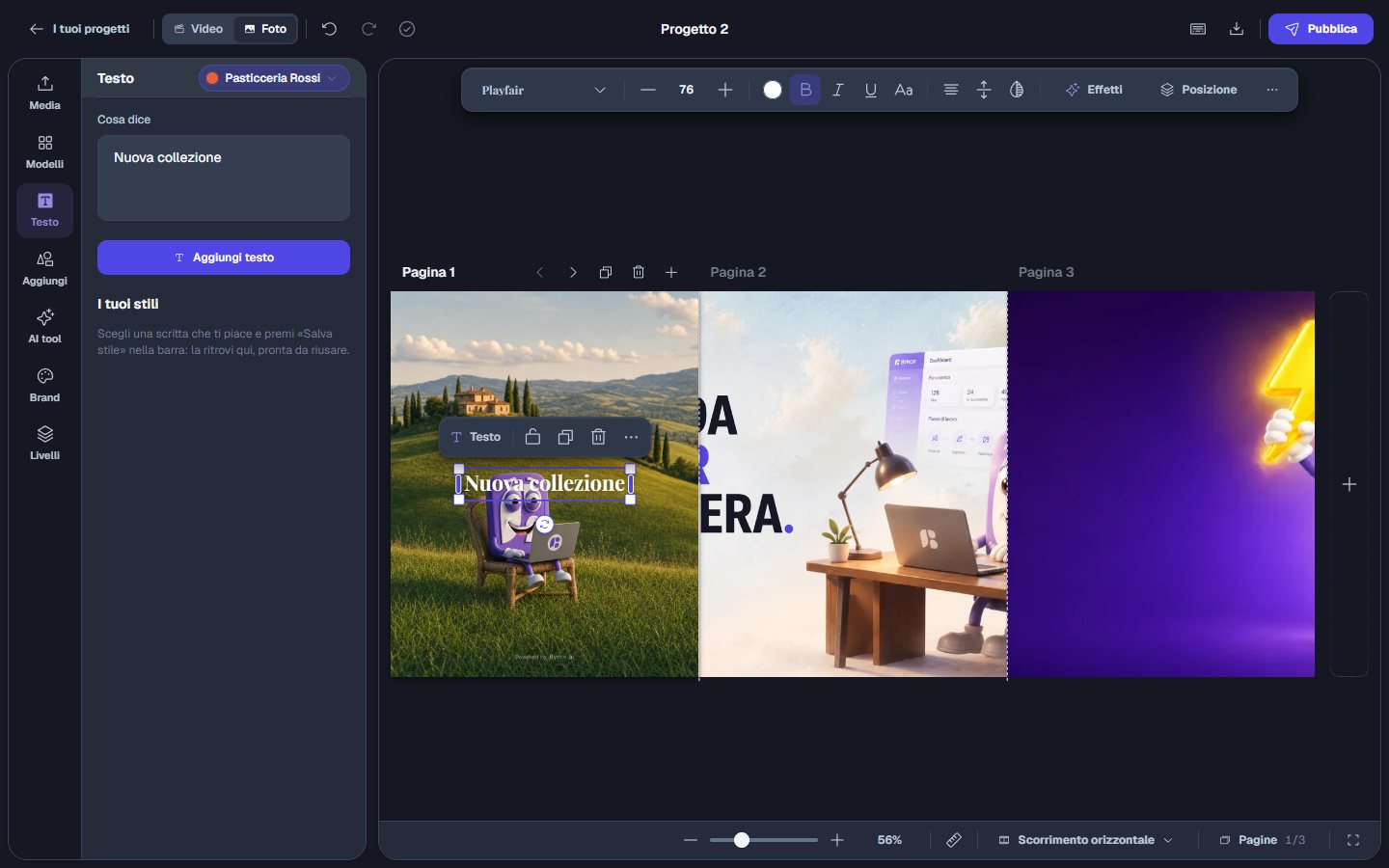
Studio is Bynor's editor for posts and carousels: type on the photo, add shapes and icons, use your brand's colors and fonts. Then hit Publish and the post is already on your calendar.
What you can do
From raw photo
to finished carousel.
On the canvas
Type on the photo, right where you see it
Double-click any text to change it. Add shapes, lines and icons, pick from 39 fonts, align and group elements. The keyboard shortcuts are the ones you already use.
Carousels & templates
One carousel, slide by slide
Every photo you upload becomes a slide. Drag to reorder them, and an element can sit across two slides: in the exported images it flows from one into the next. Starting from scratch? You get ten ready-made templates, from bullet lists to before and after, already in your brand colors.
AI tools
Text baked into the image? Edit it like text
The AI splits the image into text, subject and background. Every bit of lettering becomes real text, in its own font: you fix it like you would in a document. The eraser removes an object from the photo, and if you only need the subject, you remove the background.
Publish
Hit Publish, the post is on your calendar
Studio exports one image per slide, saves it to the brand's library and opens a new post with the files already attached: you pick the caption, channels and date. Need the files? Download them as JPG or PNG, or every slide in one ZIP.
Your brand
is already built in.
Colors, fonts, logos and text styles are saved on the brand: your whole team finds them ready, on every project.
-
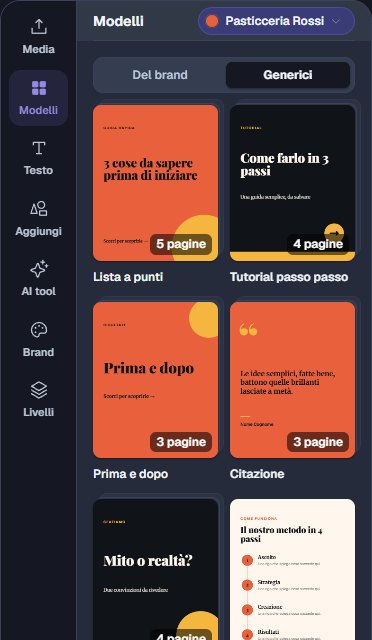
Templates
Ten ready to go, plus your own: a project that worked becomes the template for the next ones.
-
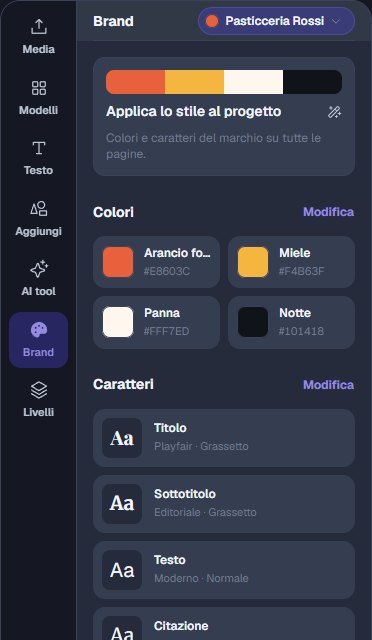
Apply your style
One tap dresses every slide in your brand colors and fonts. Tap again for a different layout.
-
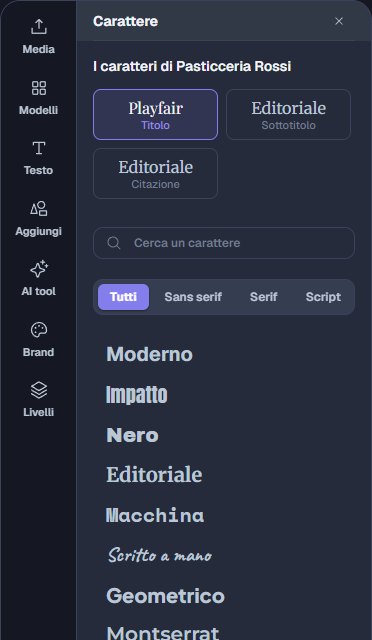
Fonts by role
Title, subtitle, body and quote: your brand's fonts always sit at the top.
Real Studio screenshots, with a test brand.
From chat to calendar,
nothing to download.
-
Ask in chat
Bynor generates the image or the carousel. One click opens it in Studio.
-
Polish it in Studio
Change a line of text, fix the light, add the logo.
-
Publish
The post opens in the calendar with the slides already uploaded.
You can also open Studio from the gallery and from the calendar library. Video editing is coming soon: you'll find it among the upcoming features.
The other features
Explore the whole system.
Bynor is one system, not a pile of tools. Every piece knows the others.
Ready?
Finish your next carousel
in Studio.
7 days free. No credit card required.